WFO Live Planning a Schedule Rotation
There may be instances where you need to have agents rotate their shifts in Monet in order to mimic how they are being scheduled in your center. This can be done using Regular Exceptions, as Regular Exceptions can be used to keep an agent from working at all on a given day, or can be used to change an agent's availability on a given day. That means that there will be two general approaches that can be combined to set up rotations. Whichever plan will work will depend on the complexity and details of the rotations that you need.
- The first approach is to set up the agent with availability for the whole work week (or whatever set of days they could possibly be available, and then use Regular Exceptions with zero hours of availability to determine what days the agents would not work.
- The second is to change their availability so that the agent takes a different shift than they would by default.
The first approach is simpler because it only requires the use of exceptions that do not alter the available hours of an agent. That means for the days that they will still work, you can leave their default availability intact. Figure 1 below shows an example of an agent that works 8:00 AM to 5:00 PM at a center that is open Monday through Saturday. The agent needs to rotate every other Saturday; and on the weeks when they work a Saturday shift, they will not work one weekday. This can be done with a recurrence, or with exceptions placed manually. But setting up the exception details themselves will remain the same regardless of the recurrence.

Figure 1 Agent Default Availability
The agent is set up to work all six days, even though they can only have a maximum of 40 hours in a week. Defining which days they will and will not work each week can be done from either the Exception Calendar, or the Exceptions tab in the Employee Profile. We are going to look at an example agent’s rotation for January through March 2012.
First, select the Exceptions tab on the employee’s profile. Then select the first Saturday that the agent will not work. Press the button under the exception grid labeled “New Recurrence.” Now we’re ready to edit the details of the exceptions we are placing, and set the recurrence pattern. Select Regular from the exception type drop-down menu at the top right of the screen. Then select the correct Exception Code. (The best practice is to select an Exception code that was set up to have zero hours represented by default.)
The most important part of this exercise is making sure that the Min/Max hours of availability are set to 0/0. This will ensure that the agent does not work on this day regardless of their default availability. Next, we can simply ignore the Earliest Start, Latest Start, Preferred Start and Latest End times. The agent isn’t working, so it doesn’t matter when they are available. The vacation hours will determine whether or not you track vacation hours as used by this exception; but most likely in a rotation scenario, these will be left to zero because the agent is not taking vacation. Finally, the Hours Worked field will typically be set to zero. This is very important because the Hours Worked will count towards an agent’s weekly or monthly target hours. So, if this field contains hours, Monet will factor these into the agent’s target hours even though the agent doesn’t appear on the roster. This is usually used in an actual vacation or PTO scenario to prevent conflicts between the target hours, and the actual hours worked when an agent does go on vacation, or something similar.
Now, we need to set up the recurrence pattern. This can be set to any day of the week, as well as monthly and yearly. For this example, we only need to have the agent rotate every other week. So, we will leave it set to Weekly, and set it to recur every 2 weeks. Then we’ll select Saturday out of the days of the week. Finally, we’ll determine the length of this recurrence, which for our example will continue until the end of March. Select the “End by” radio button, and then choose the end date with the calendar picker. Figure 2 illustrates the settings for this recurrence. Select Save when you are done.
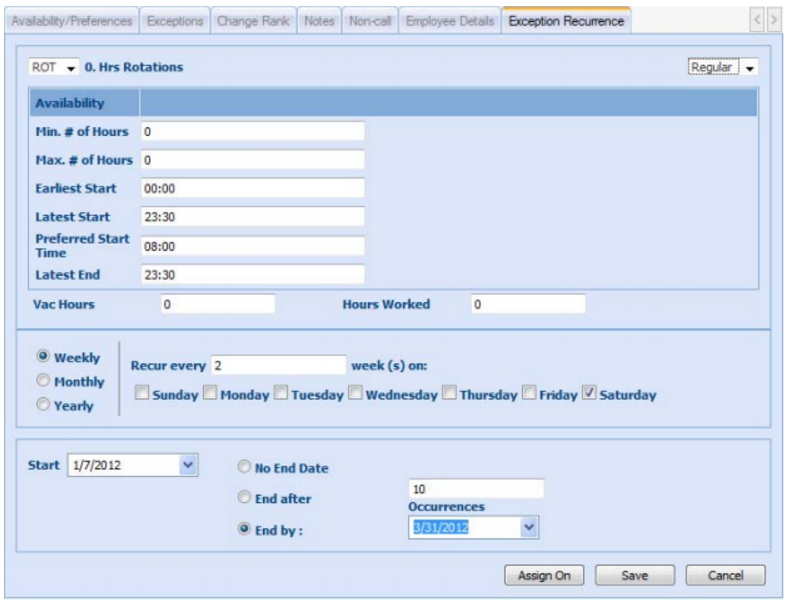
Figure 2. Exception Recurrence
Now we’ll need to determine which days the agent will not work when they do work on Saturdays. The process is exactly the same as before, except you may have to set up multiple recurrences if they are not to swap the same days out every week. For our example, let’s assume we need to set up two more recurrences with the same exact exception details, except with different days of the week for their patterns. Let’s make the recurrences we plan have the agent off on Tuesdays for the second week of the rotations, and off Thursdays for the fourth week of the rotations. Using the exact same exception settings, the recurrence pattern for Tuesday is illustrated in figure 3:
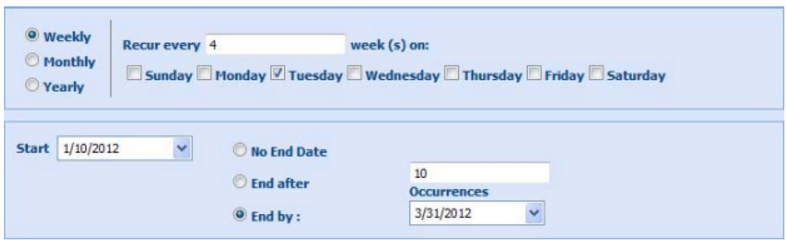
Figure 3. Tuesday Recurrence Pattern
The recurrence pattern for Thursday is illustrated in figure 4:
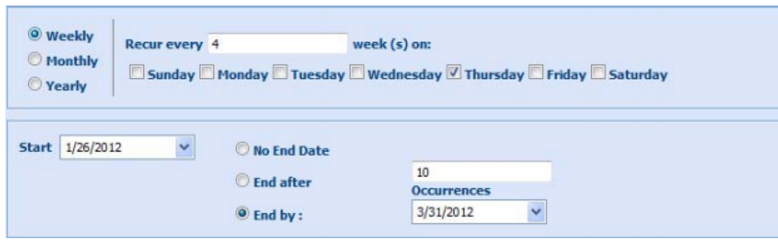
Figure 4. Thursday Recurrence Pattern
Then the end result of the rotations can be easily seen in the exception calendar below in figure 5. The days that the agent has the exceptions (in gray) are the days that they will not be working, while the other days of the week they will always be assigned (except Sundays) so that they meet their weekly target.

Figure 5. Exception Calendar
There may also be some instances where an agent needs to work a specific shift on a particular day of the week one week, and then the next week work a different shift on the same day. This can also be handled using Regular Exceptions; except in this scenario, we’ll be using the Regular Exceptions to change the shift that they get. We can use the agent from the last example; but this time we’ll set them up to work different shifts on alternating Mondays and Wednesdays. Back on the agent’s profile, under the Exceptions tab, we’re going to set up another recurrence. In this instance, we are going to have our agent work the first week of the alternating recurrence starting at 10:00 AM instead of 8:00 AM on Mondays and Wednesdays. Select the day we want to start the recurrence (in this instance, January 2nd), and then click the “New Recurrence” button. Setting up this exception’s details will be just like setting up the agent’s default availability on their profile for any given day. We’ll first set the Min/Max hours of availability to 8/8, because this agent takes 8 hours shifts. Next we’ll set the Earliest Start, Latest Start and the Preferred Start to 10:00 AM. The Latest End will be set to 19:00, because that is where the agent’s shift will end (assuming the agent takes a 1-hour lunch). Finally, the Vacation Hours and the Hours Worked will again be set to zero, unless there are special circumstances. Save when you are done entering in the details. The pattern will be similar to before, but in this case, just rotating every other week. This time, though, we can plan both days at once, because the agent will be working at the same times on Monday and Wednesday. The exception details and pattern are illustrated below in figure 6:

Figure 6. Exception Details
The end result will be a roster that has the agent rotating Saturdays, and alternating their shift start times on Mondays and Wednesdays every other week. Obviously, the rotations could be far more complex than what is outlined here, because the number of combinations for working days and availability changes for any given period of time could be practically endless. From our exercise, the agent would have the following schedule for January 2012, illustrated in figure 7.
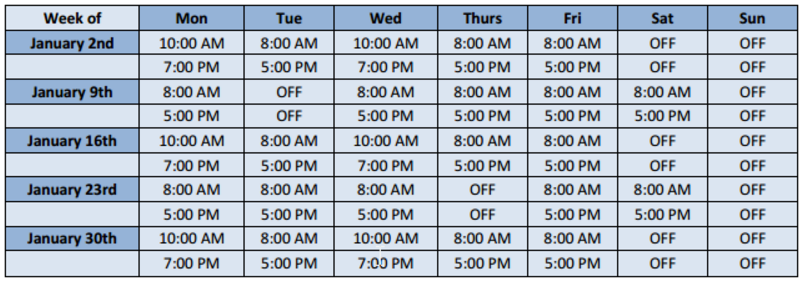
Figure 7. Agent Schedule